使用说明Usage
使用说明 Usage Guide
从安装、配置模型,到自然语言作画、渐进式控制、自动质检与多模型管理——你想知道的都在这里。 From setup and model config to natural-language drawing, progressive control, auto QA and multi-model management — everything you need is here.
本页内容On this page
快速开始 Quick start
- 1
配置模型 Configure a model
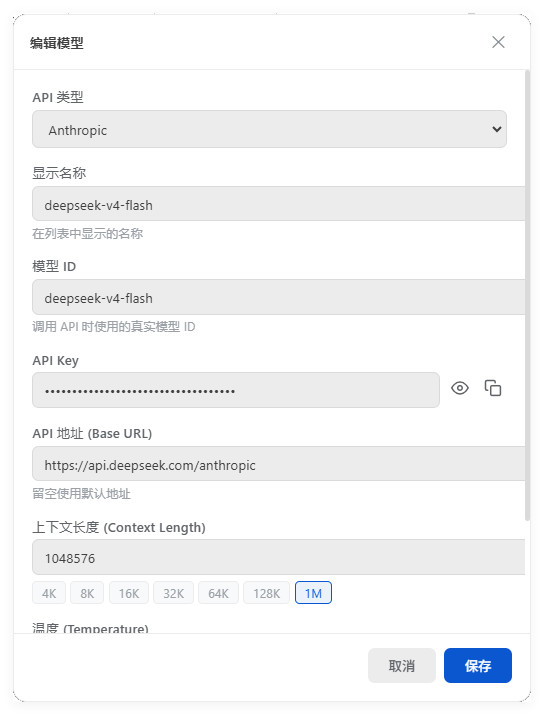
打开 AI 助手 → 设置 → 添加模型,填入模型类型、模型名、API Key(如需可填接口地址),保存。 Open the AI panel → Settings → Add a model; enter type, model name and API Key (and an endpoint URL if needed), then save.
- 2
新建对话 Start a conversation
点击「新建会话」,并选择刚配置的模型。 Click "New conversation" and pick the model you just configured.
- 3
开口画图 Speak, it draws
在输入框描述你要的图,回车发送,看着 AI 一步步画出来。 Describe the diagram in the input box, hit send, and watch the AI draw it step by step.
自然语言作画 Draw with words
直接告诉 AI 你想要的图,AI 会理解你的意图,在画布上把图画出来。例如: Just tell the AI what you want — it understands your intent and draws it on the canvas. For example:
渐进式作画 Progressive drawing
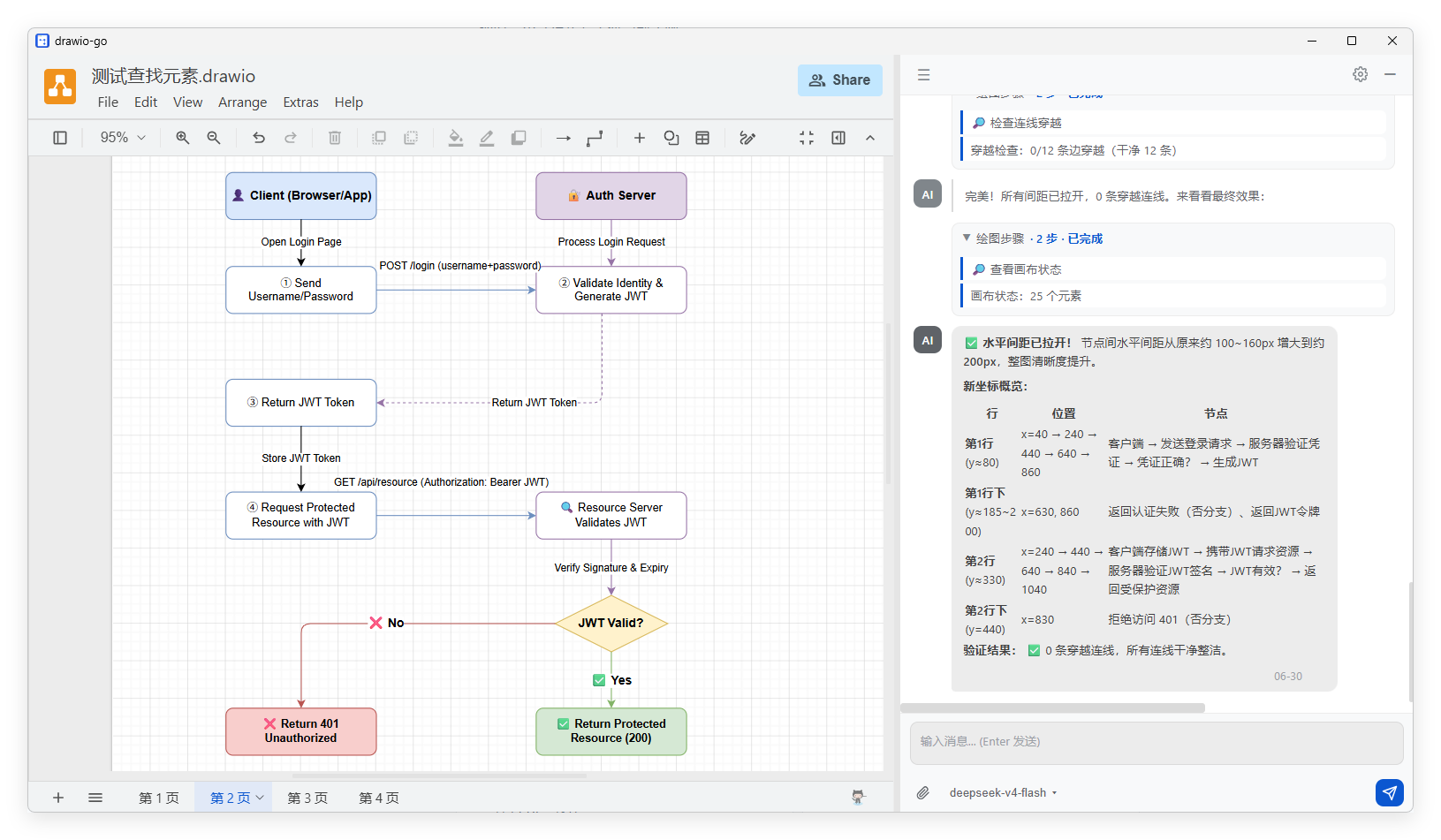
AI 不是一次性甩出一整张图,而是分步作画:先放节点、再连线、再调整布局。每画一步画布立刻更新,聊天框也会同步显示当前操作(如「添加节点:订单服务」「连线:用户 → 订单服务」)。 The AI doesn't dump a whole diagram at once — it draws step by step: nodes first, then connections, then layout. The canvas updates instantly, and the chat box mirrors each action ("add node: Order service", "connect: User → Order service").
- 实时观看作画过程;Watch the drawing live;
- 随时点击「停止」中断当前绘制;Click "Stop" anytime to interrupt;
- 完成后继续追加修改指令,让 AI 在已有图基础上调整。After it finishes, send follow-up edits and the AI adjusts the existing diagram.
全面的作画能力 Full drawing capabilities
AI 几乎能完成 draw.io 的所有常规操作: The AI can perform nearly every routine draw.io operation:
- 画图形:添加各类节点、在节点间连线、绘制自由折线 / 曲线Draw: add nodes, connect them, draw free polylines / curves
- 改图形:修改文字、颜色、形状、大小、位置Edit: change text, color, shape, size, position
- 整理:删除元件、组合 / 拆分分组Organize: delete elements, group / ungroup
- 自动排版:一键套用层级、树状、放射状、环形等多种布局Auto-layout: apply hierarchical, tree, radial, organic layouts in one click
- 编辑操作:撤销 / 重做、缩放、适应窗口、导出图片 / PDF、保存Actions: undo / redo, zoom, fit-to-window, export image / PDF, save
- 看画布:查看当前画了什么、按条件查找指定元件Inspect: see what's on the canvas, query elements by condition
- 找图标:从图形库搜索专业图标并应用到节点Find icons: search the library for pro icons and apply them
专业图标库(约 9000 个) Icon library (~9,000)
画云架构、网络拓扑、UML 这类专业图时,AI 会优先选用专业图标,而不是用普通方块凑数: For cloud architecture, network topology or UML, the AI prefers pro icons over generic boxes:
- 云服务:AWS、GCP、Azure 的各类服务图标Cloud: AWS, GCP and Azure service icons
- 网络设备:Cisco 路由器、交换机、防火墙等Network: Cisco routers, switches, firewalls
- 软件图:UML、流程图、Kubernetes 等Software: UML, flowcharts, Kubernetes
你不需要知道图标叫什么、样式怎么写,AI 会自己去库里找。 You don't need to know an icon's name or its style XML — the AI finds it in the library for you.
自动质检,图更干净 Auto QA for cleaner diagrams
draw.io 的连线不会自动绕开图形,手动画图常出现「线穿过方块」「两个框叠在一起」的问题。本版本的 AI 会主动自检: draw.io lines don't auto-route around shapes, so hand-drawn diagrams often suffer "lines through boxes" or overlapping frames. This build's AI self-checks:
- 检查图形是否重叠(包括文字标签溢出导致的重叠);Checks for overlapping shapes (including label-overflow overlaps);
- 检查连线是否穿过图形、是否压住了文字标签;Checks whether lines cut through shapes or crush text labels;
- 发现问题后自动调整位置、挪标签、重排布局,反复检查直到全图干净才算完成。Then fixes them — moving shapes, nudging labels, re-laying out — and re-checks until the whole diagram is clean.
看图说话 Describe diagrams
除了画图,AI 还能解释一张已有图:把当前画布交给 AI,它会用一段自然语言告诉你这张图画了什么,方便快速理解。 Beyond drawing, the AI can explain an existing diagram: hand it the current canvas and it returns a plain-language summary of what the diagram shows.
支持的 AI 模型 Supported models
- OpenAI 兼容:支持官方模型,也可填自定义接口地址,接入代理或国内兼容服务;OpenAI-compatible: official models, or a custom endpoint to reach proxies / regional services;
- Anthropic Claude:支持 Claude 系列模型;Anthropic Claude: the Claude model family;
- 多套配置:保存任意数量的模型配置,每条独立设置名称、模型、密钥、地址、温度等;Multiple configs: save as many as you like, each with its own name, model, key, endpoint and temperature;
- 按会话选用:每个对话可单独选择使用哪一套模型配置。Per-chat: each conversation picks its own model config.
安全提示Security note
当前版本的 API Key 以明文保存在本地,请仅在个人设备使用,并避免提交包含真实密钥的文件。The API Key is stored locally in plaintext in this version — use it only on a personal device and avoid committing files containing real keys.
对话与会话管理 Conversations & sessions
- 多会话:创建多个独立对话,分别管理不同的画图任务Multiple conversations: separate chats for separate tasks
- 自动命名:新会话发出第一条消息后自动用消息内容命名Auto-naming: a new chat names itself after your first message
- 历史回看:随时重命名或删除会话;重开会话可见完整的作画轨迹History: rename or delete anytime; reopen to see the full drawing trail
- 本地保存:所有内容存在你自己的电脑上,不上传服务器Local-only: everything stays on your machine, nothing uploaded
界面体验 Interface
- 浮动窗口:AI 助手以可折叠浮窗停靠在 draw.io 旁,可展开 / 折叠、一键回到底部、显示 / 隐藏Floating panel: a collapsible panel docked beside draw.io — expand / collapse, jump to bottom, show / hide
- 排版舒适:AI 回复支持完整的 Markdown 渲染与代码高亮Readable replies: full Markdown rendering with syntax highlighting
- 便捷操作:每条消息可一键复制 / 复制纯文本;AI 图形可直接插入到画布;支持附带文件Handy actions: copy / copy-as-plaintext per message; insert AI shapes to canvas; attach files
- 作画进度:实时展示当前画到第几步、共多少步Progress: see the current step and total steps live
- 画布快照:一眼看到当前画布有多少节点、多少连线Canvas snapshot: at-a-glance node and edge counts
- 时间显示:消息带时间戳,并显示「刚刚 / N 分钟前 / 昨天」等相对时间Timestamps: absolute time plus relative time ('just now', '5 min ago', 'yesterday')
已知限制 Known limits
- 密钥明文存储:API Key 暂未加密,建议只在可信的个人设备使用Plaintext key: the API Key is not yet encrypted — use only on a trusted personal device
- 一次画一张:同一对话同时只能进行一次绘图,发起新任务会自动停止上一个One at a time: each conversation runs one drawing at a time; starting a new one stops the previous
- 单次绘图有时限:特别复杂的大图可能需要拆成几轮指令分步完成Per-run limit: very large diagrams may need to be built over several rounds of instructions
- 作画指令为中文:即使界面切到英文,AI 内部画图规则仍按中文执行,以保证绘图效果稳定Chinese drawing rules: even with the UI in English, the AI's internal drawing rules stay Chinese for stable results
- 首版打磨中:部分交互细节仍在持续优化,欢迎反馈Early release: some interaction details are still being polished — feedback welcome